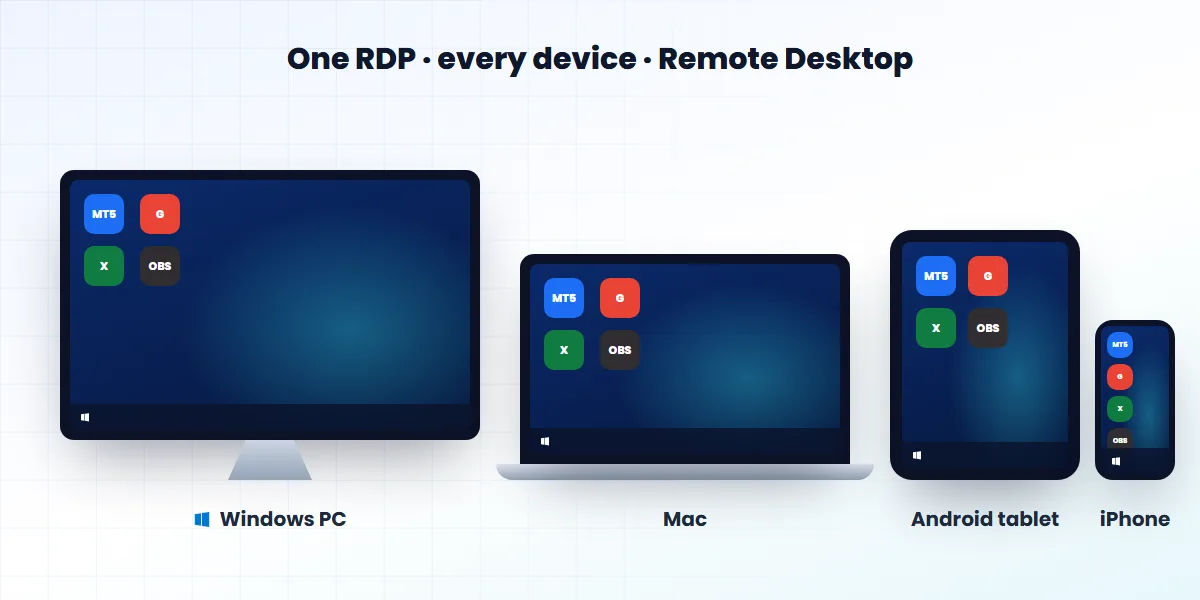
mstsc, press Enter, type your server’s IP address and click Connect. Type the username and password your host sent you. The first time, say yes to the certificate message, and the remote desktop opens. On a Mac, iPhone, iPad or Android phone, use Microsoft’s free Windows App instead.What you need before you start
- Your server’s IP address (its internet address). You also need the port number if it is not the usual 3389.
- The username — usually Administrator.
- The password from your welcome email.
- A working internet connection. Mobile data is fine.
How to connect to an RDP server from Windows 10 or 11
Connect to RDP from Windows with mstsc
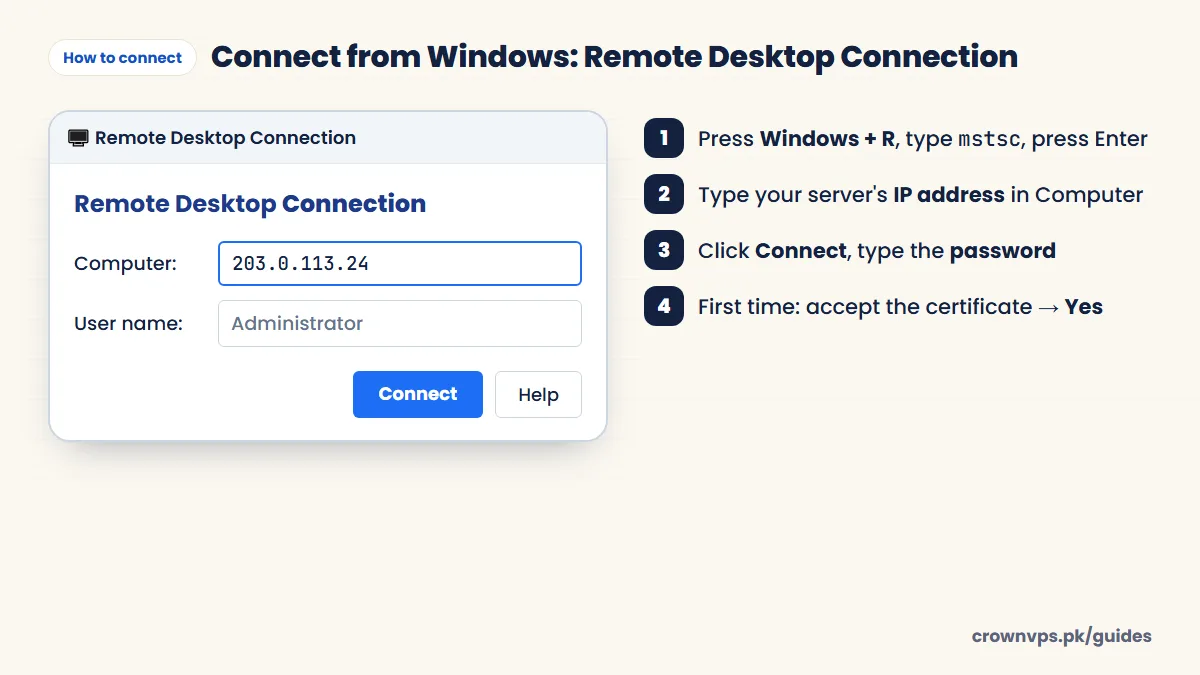
- Press Windows + R, type
mstscand press Enter. Or search the Start menu for “Remote Desktop Connection”. - In the Computer box, type the IP address. If your port is not 3389, add it after a colon, like
203.0.113.10:3390. - Click Show Options if you want to type the username now and save the connection.
- Click Connect, then type the password. Tick “Remember me” only on your own computer.
- The first time, a certificate warning appears. This is normal for a new server. Tick “Don’t ask me again” and click Yes.
- The remote desktop opens. Change the password right away: press Ctrl + Alt + End and choose “Change a password”.
What is an .rdp file?
An .rdp file is a small text file that remembers the settings for one Remote Desktop connection. It holds things like the server’s IP address, the username, the screen size and the colours. It is not the connection itself and it is not a program — it is a saved note. Double-click it and Remote Desktop Connection opens with everything already filled in.
What an .rdp file is, and how to make, use and edit one
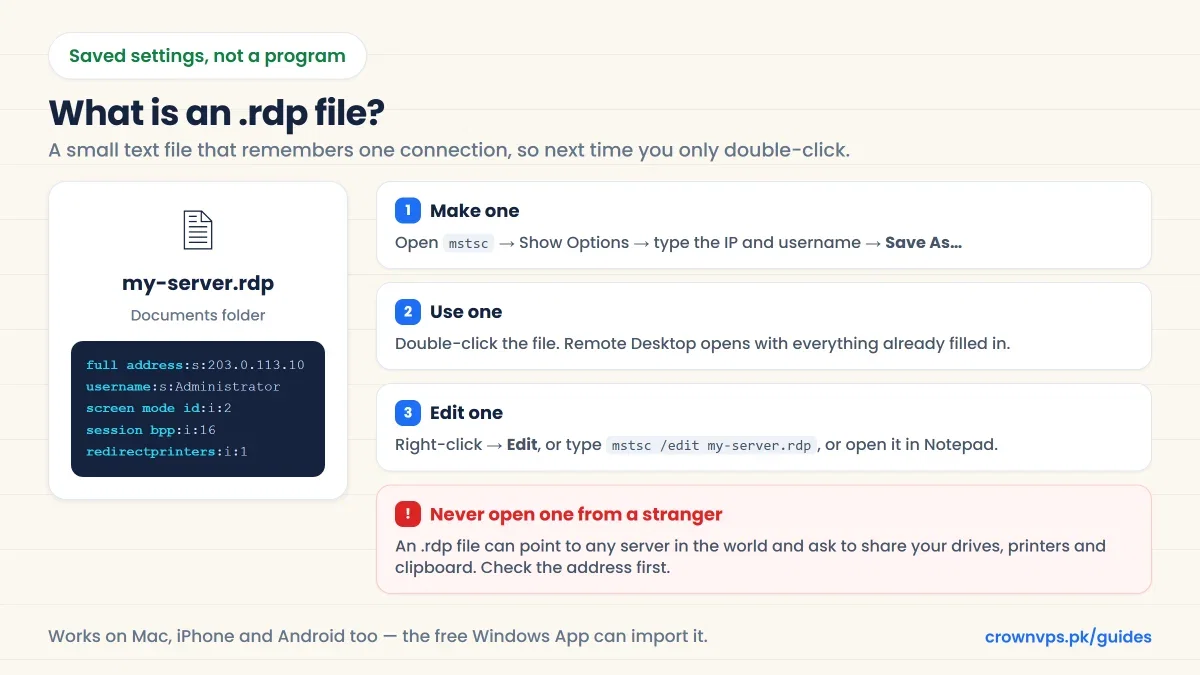
Windows makes one for you every time you click Save As in Remote Desktop Connection. By default it is saved in your Documents folder, and the hidden one Windows keeps for the last connection is called Default.rdp.
How to make an .rdp file
- Press Windows + R, type
mstscand press Enter. - Click Show Options. Type the IP address and the username, and set the Display and Experience tabs the way you like them.
- On the General tab, click Save As… and give the file a name, like
my-server.rdp. - Next time, just double-click that file. You can drag it to your desktop or pin it to the taskbar.
If you have two or three servers, make one file for each. It saves you typing the IP address every day.
How to edit an .rdp file
- The easy way: right-click the file and choose Edit. The normal Remote Desktop window opens with the saved settings, so you can change them and save again.
- From the keyboard: type
mstsc /edit my-server.rdp. - By hand: right-click → Open with → Notepad. Inside you will see one setting per line, like
full address:s:203.0.113.10,username:s:Administrator,screen mode id:i:2(2 means full screen) andredirectprinters:i:1(1 means share your printers). Change a number, save, and close.
If a saved file suddenly stops working, delete it and make a new one — the file can become damaged.
Is it safe to open an .rdp file?
Only open .rdp files that you made yourself or that your own host sent you. An .rdp file can tell your computer to share your drives, your printers and your clipboard with the far-away server, and it can point to any server in the world. People send fake .rdp files in emails for exactly this reason. Before you open one from somebody else, right-click → Edit and look at two things: the address in the Computer box, and what is ticked under Local Resources. If you do not know the address, delete the file.
Also, do not tick “Allow me to save credentials” on a shared or office computer. That saves your password on that machine for anyone who uses it.
Opening an .rdp file on a Mac or phone
The free Windows App can import an .rdp file: open it from Files, Mail or iCloud and the app adds the PC for you. On Android, open the file and choose Windows App. If nothing happens, just add the server by hand with the + button — it takes the same 30 seconds.
How to connect to RDP from a Mac
Connect to RDP from Mac, iPhone or Android with Windows App
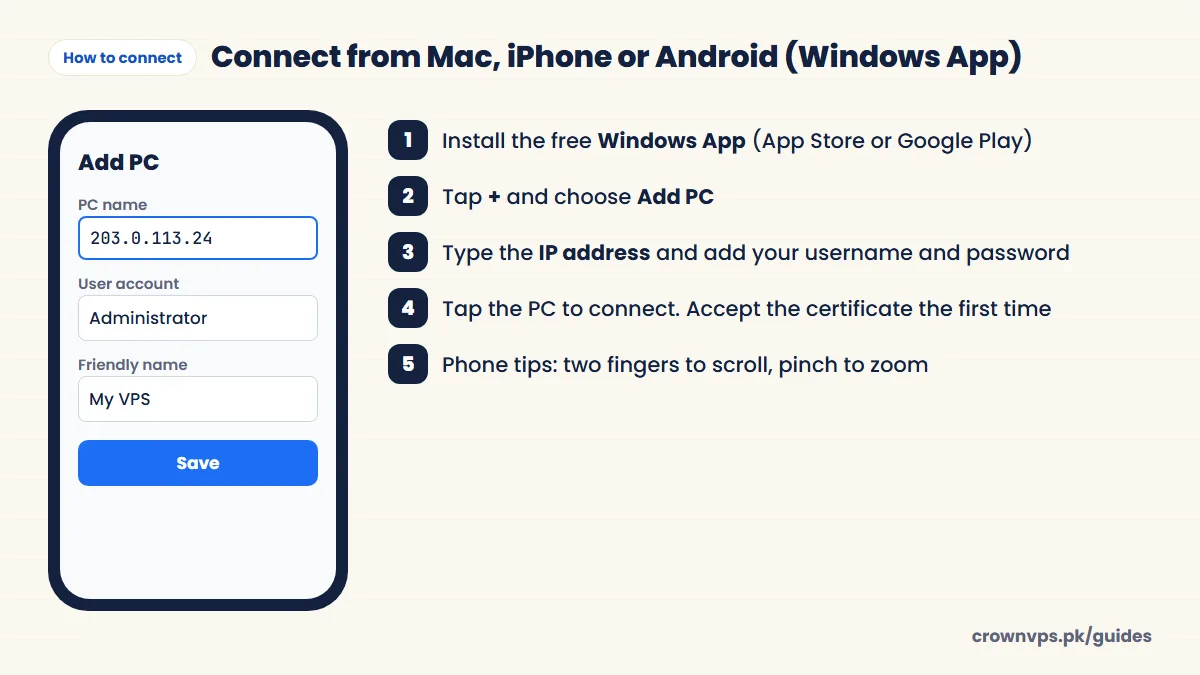
- Install Windows App from the Mac App Store. It is the new name of Microsoft Remote Desktop.
- Click + and choose Add PC. Type the IP address as the PC name.
- Under User account, add the username and password. Then save.
- Double-click the new PC and say yes to the certificate. The desktop opens.
On a Mac keyboard, the Windows key is usually the Command (⌘) key inside the session.
How to connect to RDP from an iPhone, iPad or Android phone
- Install Windows App from the App Store or Google Play. (Some Android phones still list it as “Remote Desktop” by Microsoft.)
- Tap +, choose Add PC, and type the IP address.
- Add your username and password, save, and tap the connection.
- Use two fingers to scroll and pinch to zoom. The on-screen keyboard button is in the toolbar at the top.
Tip: turn your phone sideways for a bigger desktop, and use a Bluetooth keyboard for long typing.
How to connect from Linux
Install Remmina from your software store, choose the RDP protocol, type the IP, username and password, and connect. Or use FreeRDP in the terminal: xfreerdp /v:203.0.113.10 /u:Administrator.
Copy files and text to and from the server
- Copy and paste works for text and small files between your computer and the server. Make sure Show Options → Local Resources → Clipboard is ticked.
- For bigger files, open Local Resources → More, tick your drives (like C:), then connect. Your drives appear in the server’s File Explorer under “This PC”.
- Or use online storage, like Google Drive, on both computers.
Useful shortcuts
| What you want | Press |
|---|---|
| Ctrl + Alt + Del inside the server (change password, Task Manager) | Ctrl + Alt + End |
| Switch between full screen and a window | Ctrl + Alt + Break (Pause) |
| Open the connection in full screen | mstsc /f |
| Use all your monitors | mstsc /multimon (or Show Options → Display → “Use all my monitors”) |
| Connect with a port | mstsc /v:203.0.113.10:3390 |
Log off or disconnect?
Closing the window (X) only disconnects you — your programs keep running on the server. That is what you want for trading robots and bots. Signing out (Start → your name → Sign out) closes your programs. Use it on a shared computer or when you are done for the day.
Make it smoother on a slow connection
In Remote Desktop Connection, open Show Options → Display and set colours to High Colour (16-bit). Then open Experience and choose a lower connection speed. This turns off the wallpaper and moving effects, and it makes a big difference. More fixes for slow RDP.
First things to do after logging in
- Change the Administrator password to a long one that you use nowhere else.
- Run Windows Update and restart.
- Install your software.
- Follow our RDP security checklist.
Quick summary
- Windows: Windows + R → mstsc → IP → Connect → password.
- Click Save As to make an .rdp file, so next time you only double-click.
- Mac, iPhone, iPad, Android: free Windows App → + → Add PC → IP → log in.
- Add the port after a colon if it is not 3389.
- Close the window to leave programs running; sign out to close them.
Frequently asked
What is an RDP file?
An .rdp file is a small text file that saves the settings of one Remote Desktop connection: the server address, the username, the screen size and the colours. Double-click it and the connection opens with everything filled in. Windows makes one when you click Save As in Remote Desktop Connection.
How do I open an .rdp file?
On Windows, double-click it. If it does not open, right-click → Open with → Remote Desktop Connection. On a Mac, iPhone or Android, open it with the free Windows App, or add the server by hand with the + button.
How do I edit an .rdp file?
Right-click the file and choose Edit, or type mstsc /edit yourfile.rdp. You can also open it in Notepad, because it is plain text with one setting on each line.
Is it safe to open an .rdp file someone sent me?
Not always. An .rdp file can point to any server and can ask to share your drives, printers and clipboard. Only open files you made yourself or that your own host sent you. If you are not sure, right-click → Edit and check the address first.
Where does Windows save .rdp files?
In your Documents folder by default. The hidden file Windows keeps for your last connection is called Default.rdp and also lives there.
What is the default RDP port?
TCP 3389. If your host changed it, add the port to the address after a colon, for example 203.0.113.10:3390.
Which app do I use for RDP on a Mac?
Windows App from the Mac App Store. It is Microsoft’s free app and the new name of “Microsoft Remote Desktop”.
Can I use RDP on my Android phone?
Yes. Install Windows App (or “Remote Desktop” by Microsoft) from Google Play, add the IP, username and password, and tap to connect.
How do I press Ctrl + Alt + Del in RDP?
Press Ctrl + Alt + End. It does the same job inside the remote desktop.
How do I exit full screen in RDP?
Press Ctrl + Alt + Break, or move your mouse to the top of the screen and use the connection bar.
Why is copy and paste not working in RDP?
Check that Clipboard is ticked under Show Options → Local Resources, then reconnect. If it still fails, restart the server from your control panel.
Why does it say the remote computer can't be found?
Usually there is a mistake in the IP address, the server is still starting, or your network blocks the port. Check the address and wait a minute. Then try from another network, like mobile data. Full troubleshooting guide.
Is it safe to accept the certificate warning?
Yes, on a server you just got from your host. The certificate was made by the server itself, so Windows warns you about it. But if the warning shows up again later on a server you have used for months, stop and ask your host.
Roman Urdu mein sawal jawab
RDP kaise connect karein?
Windows par Windows + R dabayein, mstsc likh kar Enter karein, IP daalein, Connect dabayein aur password likhein. Pehli dafa certificate par Yes karein.
Mobile par RDP kaise chalayein?
Play Store ya App Store se free Windows App install karein. + dabayein, Add PC chunein, IP aur password daal kar connect karein.
RDP band karne se programs band ho jate hain?
Nahin. Window band (X) karne se programs server par chalte rehte hain. Sign out karne se band hote hain.
Written in plain English by the CrownVPS support team. Something not clear? Tell us on WhatsApp and we will explain — and improve the guide.