slmgr /rearm, press Enter and restart the server. This gives you a fresh 180 days. First type slmgr /dlv to see how many days and how many extensions (rearms) you have left. When no rearms are left, you need a product key to turn the trial into a full version.This guide is for Windows Server 2025, 2022, 2019 and 2016. Every step uses tools that come with Windows. You do not need to download anything.
What is the Windows Server evaluation?
Microsoft lets anyone try Windows Server for free. This free copy is called the evaluation (or trial) version. It works like the full Windows Server — same programs, same Remote Desktop — but it stops after a set time.
- How long: 180 days from the day it is installed.
- Editions: Standard and Datacenter, with or without the desktop (Desktop Experience).
- What it is for: testing and learning. Microsoft’s licence terms for the evaluation say it is not for normal business use. For a server that runs your business, use a full, activated version.
You usually get an evaluation copy when you install Windows Server yourself from Microsoft’s free download, for example from your own ISO file (custom ISO) on a VPS.
How to tell if your server is an evaluation copy
There are three easy ways. Use any one.
- Look at the desktop. If Windows is not activated, the bottom-right corner shows the time left in the evaluation.
- Use DISM. Open Command Prompt or PowerShell as administrator and type
DISM /online /Get-CurrentEdition. If the name ends in Eval — for exampleServerStandardEval— it is a trial copy. - Use slmgr. Type
slmgr /dlv. If you see EVAL in the name or description, it is a trial copy.
How many days are left?
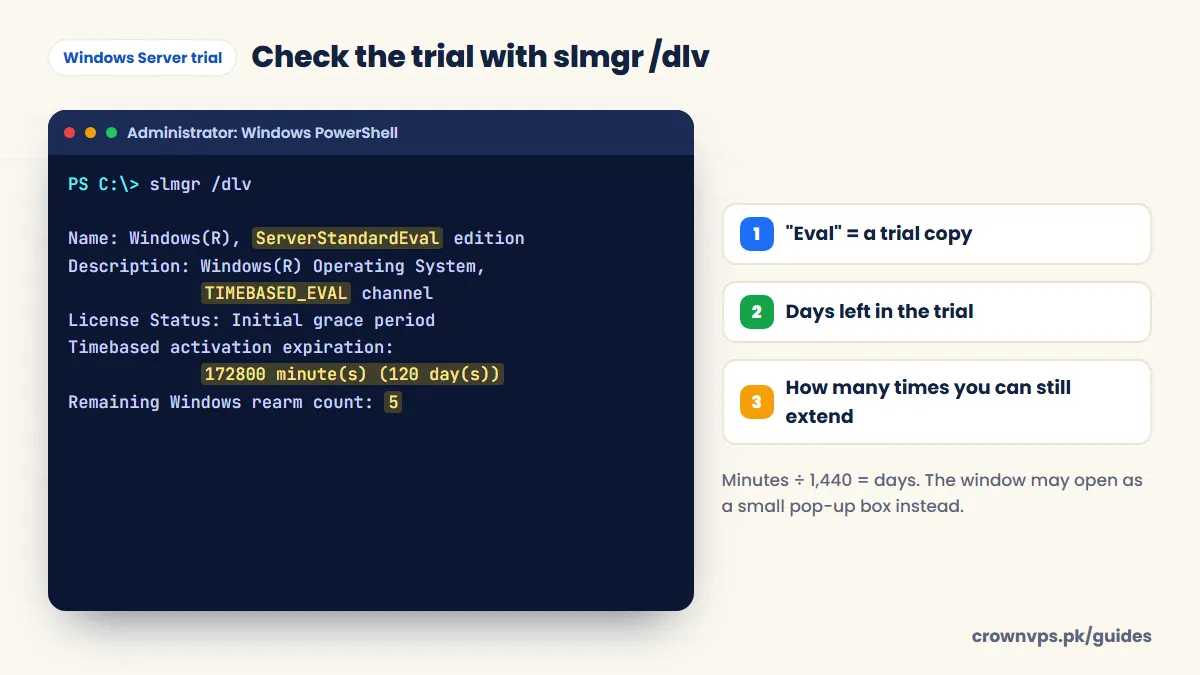
slmgr is the Windows tool for licence and activation settings. It can show your trial in two ways:
slmgr /xprshows a small box with the date and time the trial ends.slmgr /dlvshows the full details. Look for two lines: Timebased activation expiration (the time left) and Remaining Windows rearm count (how many more times you can extend).
The time left is shown in minutes. To change minutes into days, divide by 1,440 (the number of minutes in a day). For example, 172,800 minutes ÷ 1,440 = 120 days.
Read your trial details with slmgr /dlv
How to extend the Windows Server evaluation, step by step
“Rearm” means resetting the trial clock. Each rearm gives you a new 180 days.
- Open PowerShell as administrator. Click Start, type PowerShell, right-click Windows PowerShell and choose Run as administrator. (Command Prompt run as administrator works too.)
- Check what you have left. Type
slmgr /dlvand press Enter. Wait a few seconds for the box to open. Note the Remaining Windows rearm count. If it is 0, jump to “Turn the trial into a full version” below. - Extend the trial. Type
slmgr /rearmand press Enter. A box says the command completed successfully and asks you to restart. - Restart the server. Type
Restart-Computerand press Enter, or restart from the Start menu. The new days only start after the restart. - Check it worked. After the restart, log in again and type
slmgr /dlv(orslmgr /xpr). The time left should be back to about 180 days, and the rearm count should be one less.
Extend the Windows Server trial in 4 steps
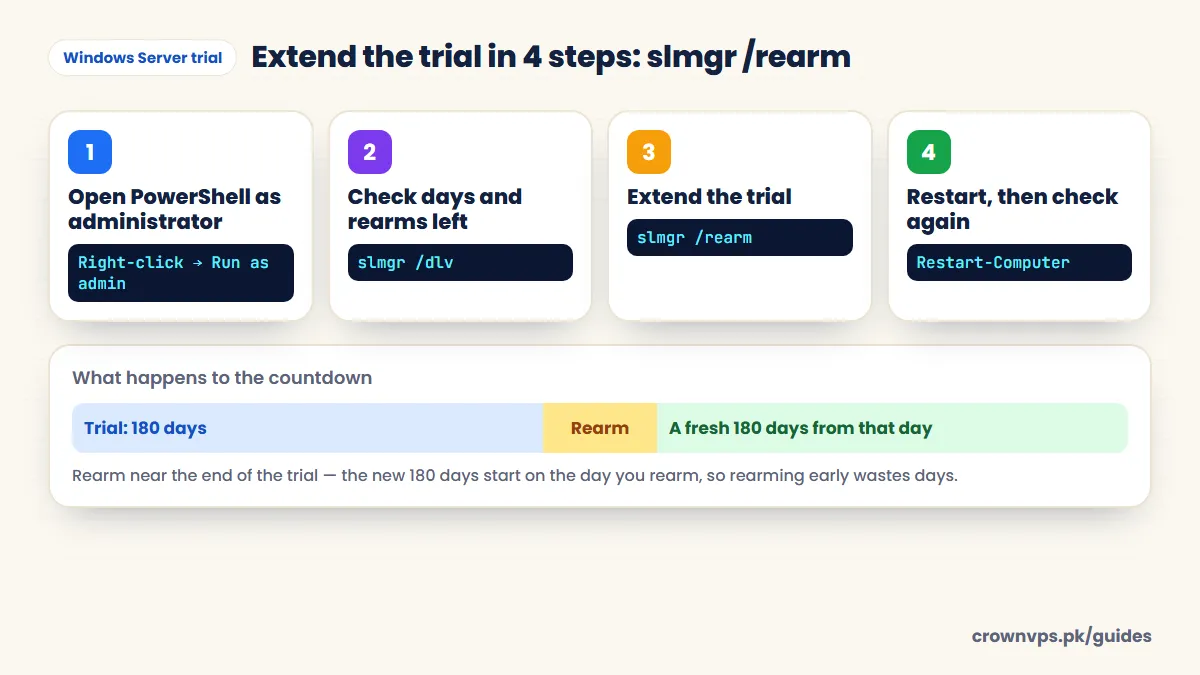
Tip: rearm near the end, not at the start. A rearm does not add 180 days on top of the days you still have. It starts a new 180 days on the day you run it. If you rearm with 100 days still left, those 100 days are lost. So wait until the last few days — but do not wait until after it has expired, because an expired server keeps shutting down (see below).
Remote server? When you restart a VPS, your Remote Desktop window closes. Wait one or two minutes, then connect again.
How many times can you extend the trial?
The number is shown on your own server as Remaining Windows rearm count — always trust that number. As a guide:
| Version | Trial length | Rearms you usually get |
|---|---|---|
| Windows Server 2016, 2019, 2022 | 180 days | Usually 5 or 6 — up to about 3 years in total |
| Windows Server 2025 | 180 days | Some copies show only 1 — check slmgr /dlv |
When the count reaches 0, slmgr /rearm stops working and shows error 0xC004D307. At that point you either turn the trial into a full version with a product key, or install Windows Server again.
What happens when the evaluation expires? (Windows shuts down every hour)
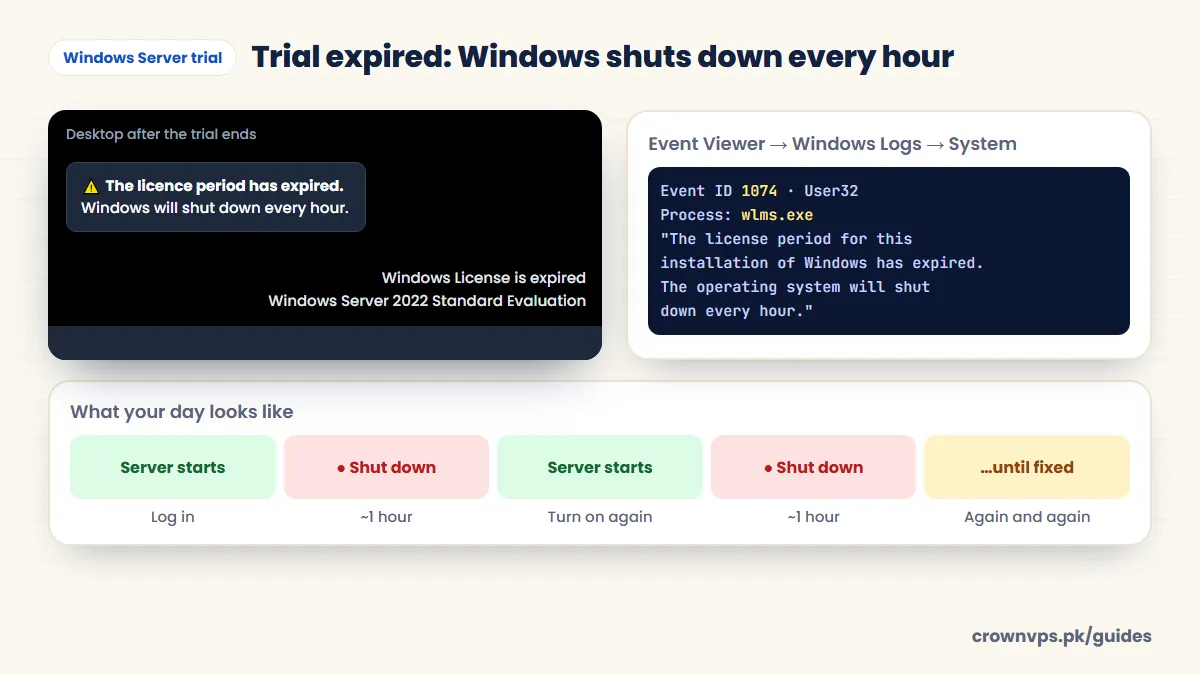
When the 180 days end and you have not extended the trial, Windows does not simply show a warning. It forces the server to shut down by itself, about once every hour. This is the biggest problem with an expired trial, especially on a VPS that must stay on day and night.
Why it shuts down
Windows Server has a built-in licence checker called the Windows Licensing Monitoring Service (its program is wlms.exe). It runs in the background all the time. When it sees that the evaluation period is over, it tells Windows to shut down. It does this again every hour, for as long as the licence stays expired. It is not a virus, a hacker or a problem with your VPS — it is Windows enforcing the trial rules.
What you will see
- A black desktop. Your wallpaper is replaced by a black background.
- A message in the bottom-right corner saying the Windows licence is expired, with the name of your evaluation edition.
- A notice saying the licence period has expired and Windows will shut down every hour.
- A sudden shutdown about an hour after the server starts — even if you are in the middle of work.
Trial expired: Windows shuts down every hour
What it means on a VPS
- Remote Desktop disconnects each time, and you cannot connect until the server is turned on again.
- Everything running stops: MetaTrader and trading robots, websites, bots, emulators, live streams and scheduled tasks.
- Unsaved work is lost, because the shutdown does not wait for you.
- The server may stay off until you start it again from your VPS control panel. Some set-ups turn it back on by themselves; many do not.
- Your files are safe. Nothing is deleted. The server just keeps switching off.
How to check that the licence caused the shutdown
- Press Windows + R, type
eventvwrand press Enter to open Event Viewer. - Open Windows Logs → System.
- Click Filter Current Log on the right and type 1074 (the event for a planned shutdown).
- Open the newest events. If the process is
wlms.exeand the comment says the licence period for this installation of Windows has expired, the trial caused the shutdown.
You can also type slmgr /dlv — the licence status will show that the evaluation has ended.
What to do right away
- Turn the server on from your VPS control panel if it is off, and log in straight away. You have about an hour.
- Save and copy anything important first — to your computer or cloud storage — in case you run out of time.
- If you still have a rearm: run
slmgr /rearmas administrator and restart. The hourly shutdowns stop and you get a fresh 180 days. - If you have no rearms left: turn the trial into a full version with a product key (next section), or install Windows Server again.
- Check it worked: after the restart,
slmgr /dlvshould show days left again, and the server should stay on for more than an hour.
Do not try to stop or delete the licence service to avoid the shutdowns. It breaks Microsoft’s licence terms, it can leave Windows unstable, and updates can turn it back on. Fix the licence instead.
Best of all, do not let it get this far. Check slmgr /xpr every month and rearm in the last few days of the trial, or move to a full version before it ends.
Turn the trial into a full version (with a product key)
If you have a real product key for Windows Server, you can change the evaluation into the full version without installing again. Your programs and files stay. Microsoft calls this “converting” the edition, and it uses a tool called DISM.
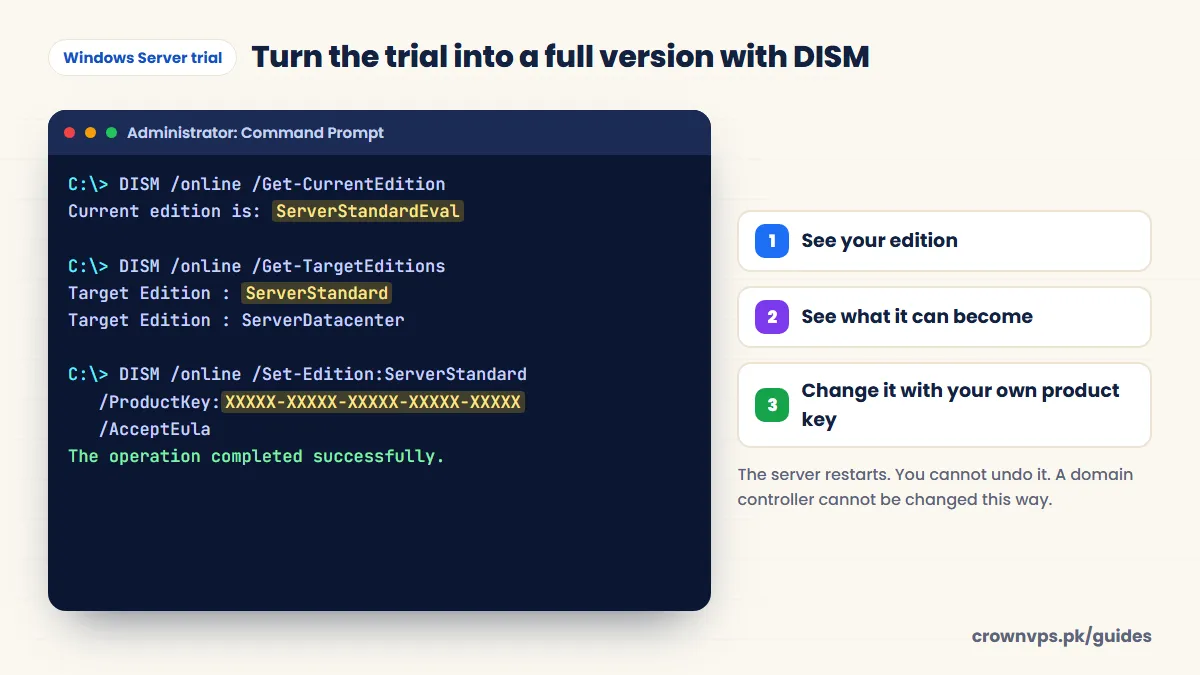
- Open Command Prompt or PowerShell as administrator.
- See your edition:
DISM /online /Get-CurrentEdition— for exampleServerStandardEval. - See what it can become:
DISM /online /Get-TargetEditions— for exampleServerStandardorServerDatacenter. - Change it, using your key:
DISM /online /Set-Edition:ServerStandard /ProductKey:XXXXX-XXXXX-XXXXX-XXXXX-XXXXX /AcceptEula - Type Y when it asks to restart. The change can take a while and the server may restart more than once.
Turn the Windows Server trial into a full version with DISM
Good to know before you start:
- You cannot undo it. Once changed, it stays a full version.
- Use a key for the right edition. A Standard key for Standard, a Datacenter key for Datacenter. With the wrong key, Windows cannot activate.
- Not every change is possible. A Datacenter trial can only become Datacenter. If the edition you want is not in the
Get-TargetEditionslist, you have to install that edition fresh. - Domain controllers cannot be changed this way. If the server runs Active Directory, set up a new domain controller on a full version first and move the roles to it.
Common problems and fixes
| What you see | What it means | What to do |
|---|---|---|
| “Access denied” or error 0xC0000022 | PowerShell is not running as administrator | Close it and open it again with “Run as administrator” |
| Error 0xC004D307 | No rearms are left | Use a product key (DISM steps above) or install again |
The days did not change after slmgr /rearm | The server has not restarted yet | Restart, then check again with slmgr /dlv |
Nothing opens after typing slmgr /dlv | The box takes a few seconds, or opened behind other windows | Wait, or check the taskbar for “Windows Script Host” |
| DISM says the edition cannot be changed | That edition is not a target for your trial | Run /Get-TargetEditions and pick one from the list |
What not to do
- Do not use “activators”, cracks or key generators. They break Microsoft’s terms and very often hide viruses that steal passwords — a big risk on a server that holds your accounts.
- Do not rearm on the first day. You lose the days you already had.
- Do not use a trial for your live business. It will stop working one day, maybe at a bad time.
If your server is from CrownVPS
Installed Windows Server yourself from your own ISO file (custom ISO)? Then this guide is for you. Did we set up the server for you, and you now see an evaluation or activation message? Do not change any licence settings — message our support team on WhatsApp first, 24/7 in Urdu or English.
Related: What is a Windows VPS? · How to connect to RDP · Windows Server 2025 VPS
Quick summary
- The Windows Server evaluation lasts 180 days.
slmgr /dlvshows the days left and the rearms left.slmgr /rearm+ a restart gives a fresh 180 days. Do it near the end.- No rearms left? Use your product key with
DISM /online /Set-Edition, or install again. - An expired trial is forced to shut down about every hour by the licence service (wlms.exe). Your files are safe — rearm or add a key to stop it.
Frequently asked
How long is the Windows Server evaluation?
180 days from the day it is installed. The time left shows in the bottom-right corner of the desktop, and with the command slmgr /xpr.
How do I extend the Windows Server trial?
Open PowerShell as administrator, type slmgr /rearm, press Enter and restart. You get a new 180 days, as long as you have rearms left. Check with slmgr /dlv.
How many times can I rearm Windows Server?
Look at “Remaining Windows rearm count” in slmgr /dlv. Windows Server 2016, 2019 and 2022 usually allow 5 or 6 rearms, which is up to about 3 years. Some Windows Server 2025 copies allow only 1.
Does slmgr /rearm delete my files or programs?
No. It only resets the trial clock. Your files, programs and settings stay the same after the restart.
What happens when Windows Server evaluation expires?
The desktop turns black, a message says the licence is expired, and Windows forces the server to shut down about every hour. Everything running stops each time. Your files are kept. Rearm if you can, or move to a full version with a product key.
Why does my Windows Server shut down every hour?
Most often because the evaluation (trial) has expired. The Windows Licensing Monitoring Service (wlms.exe) shuts the server down about once an hour until the licence is fixed. Check Event Viewer → System for event ID 1074 from wlms.exe, then run slmgr /rearm or add a product key.
Can I turn the evaluation into a full version without reinstalling?
Yes, with a real product key. Use DISM /online /Get-TargetEditions to see the options, then DISM /online /Set-Edition with your key and /AcceptEula. It cannot be undone, and it does not work on a domain controller.
Can I use the evaluation for my business?
Microsoft’s evaluation terms are for testing and learning, not normal business use. For a server that runs your business, use a full, activated version.
Roman Urdu mein sawal jawab
Windows Server ka trial kaise barhayein?
PowerShell ko administrator ke taur par kholein, slmgr /rearm likh kar Enter dabayein, phir server restart karein. Naye 180 din mil jayenge.
Kitne din bache hain, kaise pata karein?
slmgr /dlv ya slmgr /xpr likhein. Minutes ko 1,440 se divide karein to din ban jate hain.
Server har ghante khud band kyun ho jata hai?
Aksar is liye ke Windows Server ka trial khatam ho gaya hai. Windows ki licence service (wlms.exe) har ghante server band kar deti hai. Jaldi login karein, data save karein, phir slmgr /rearm karein ya product key lagayein.
Rearm kab karna chahiye?
Trial khatam hone se kuch din pehle. Pehle kar diya to bache hue din zaya ho jate hain.
Rearm khatam ho jayein to kya karein?
Apni product key se DISM ke zariye full version bana lein, ya Windows dobara install karein.
Written in plain English by the CrownVPS support team. Something not clear? Tell us on WhatsApp and we will explain — and improve the guide.